> ## Documentation Index
> Fetch the complete documentation index at: https://studio-docs.prem.io/llms.txt
> Use this file to discover all available pages before exploring further.
# Create a Snapshot 📸
> Learn how to create a snapshot of your dataset.
# What is a Snapshot?
A snapshot is a saved version of your dataset at a specific point in time. It is useful to keep track of your dataset's progress and to revert to a previous state if needed.
# How to Create a Snapshot
Need at least **10 datapoints** in training to create a snapshot. You can either use autosplit or manually split your dataset.
Click the Snapshots button on the top right of the screen to create a snapshot of your dataset.
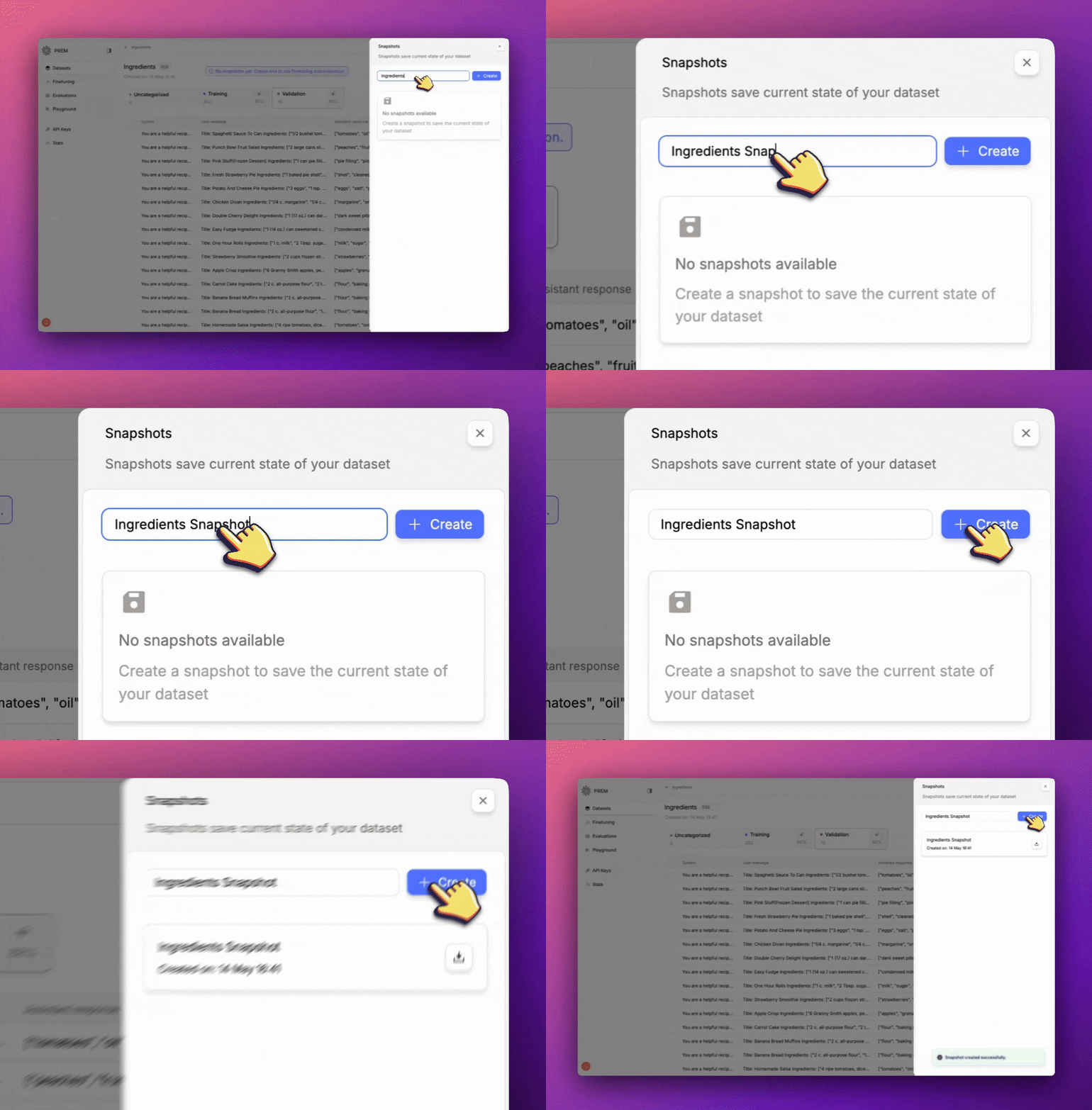
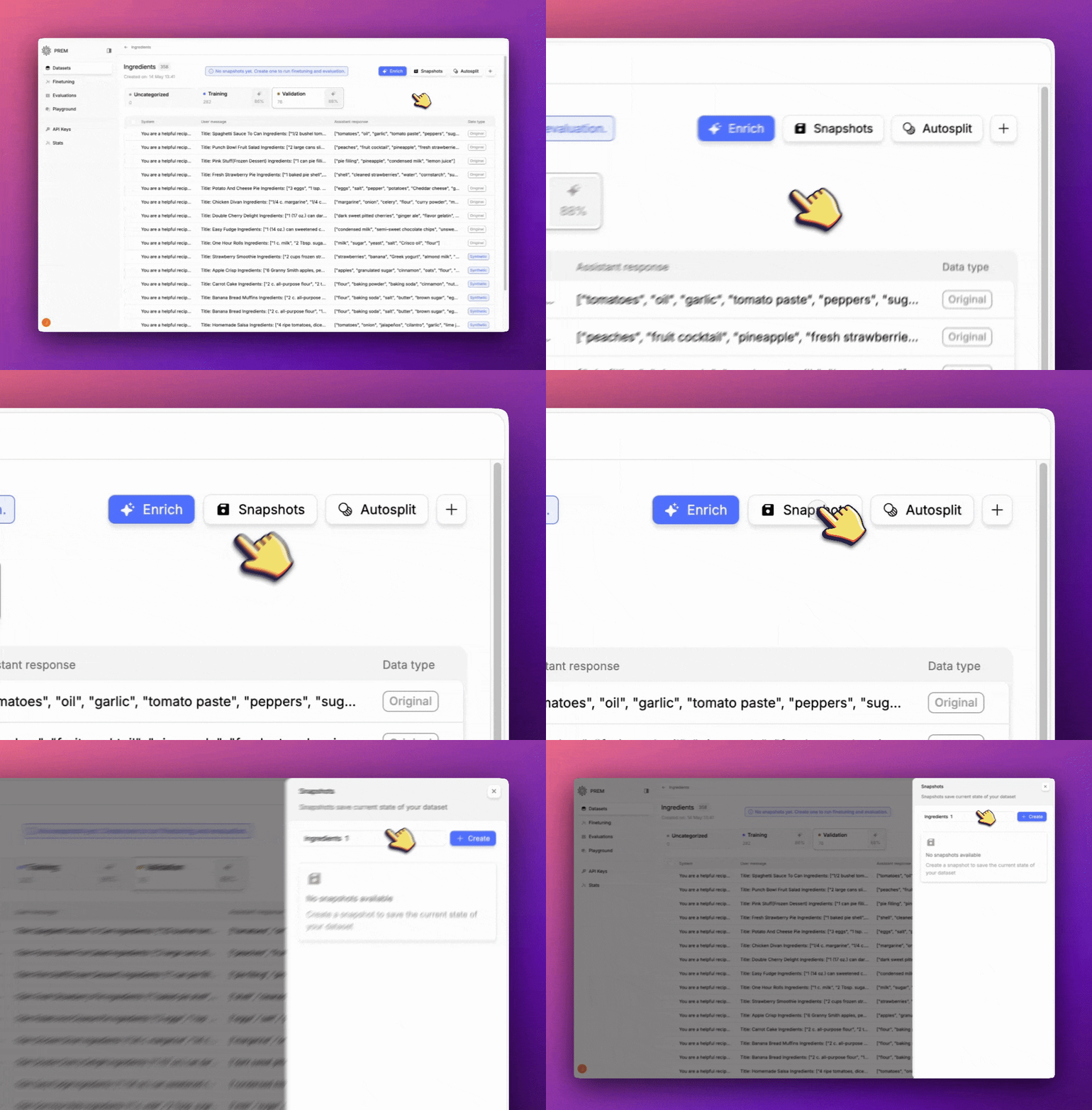 Create a name for the snapshot. You'll need it when you want to evaluate or fine-tune a model.
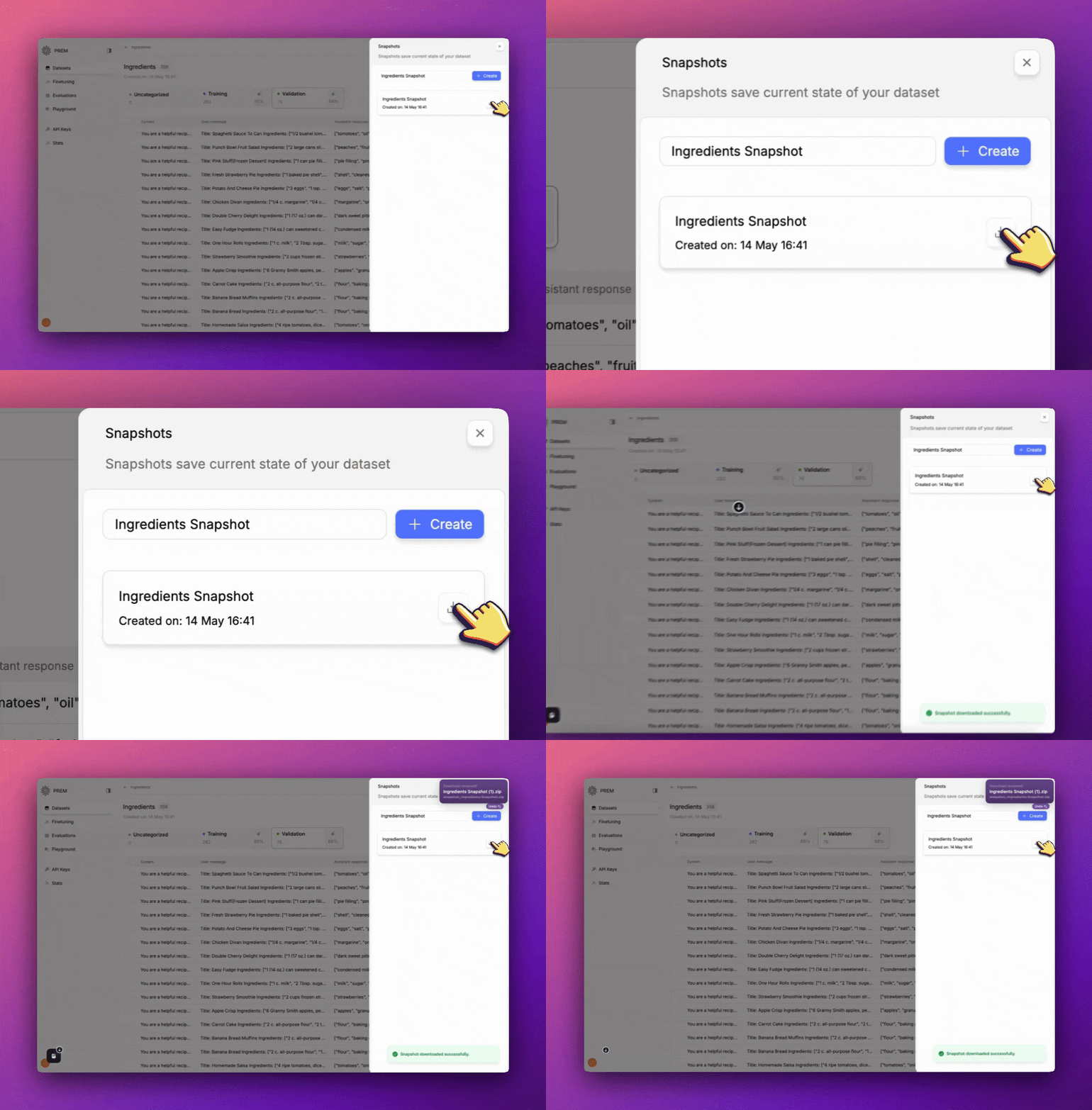
 Click the download button to download the snapshot. Save it somewhere you can remember to access it later.
 A ***Snapshot*** is required to [fine-tune](/finetuning/get-started.mdx) or [evaluate](/evaluations/get-started.mdx) a model.
Fine-Tune a model with a snapshot.
Evaluate a model with a snapshot.
A ***Snapshot*** is required to [fine-tune](/finetuning/get-started.mdx) or [evaluate](/evaluations/get-started.mdx) a model.
Fine-Tune a model with a snapshot.
Evaluate a model with a snapshot.