> ## Documentation Index
> Fetch the complete documentation index at: https://studio-docs.prem.io/llms.txt
> Use this file to discover all available pages before exploring further.
# Get Started With Evaluations
> Learn how to evaluate a model in Prem.
# Start Here ↓
You can only evaluate a model if you have a snapshot of your dataset.
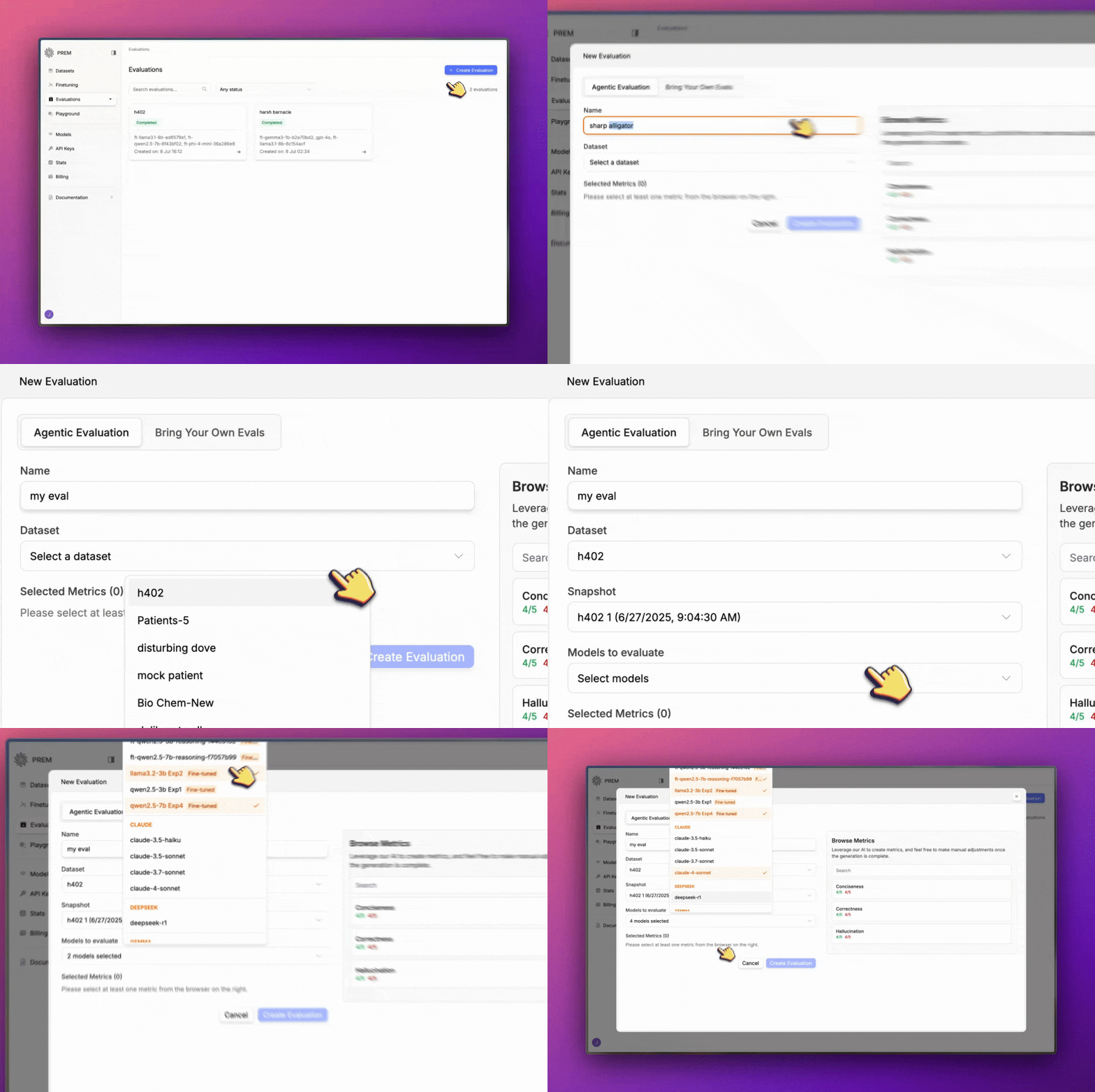
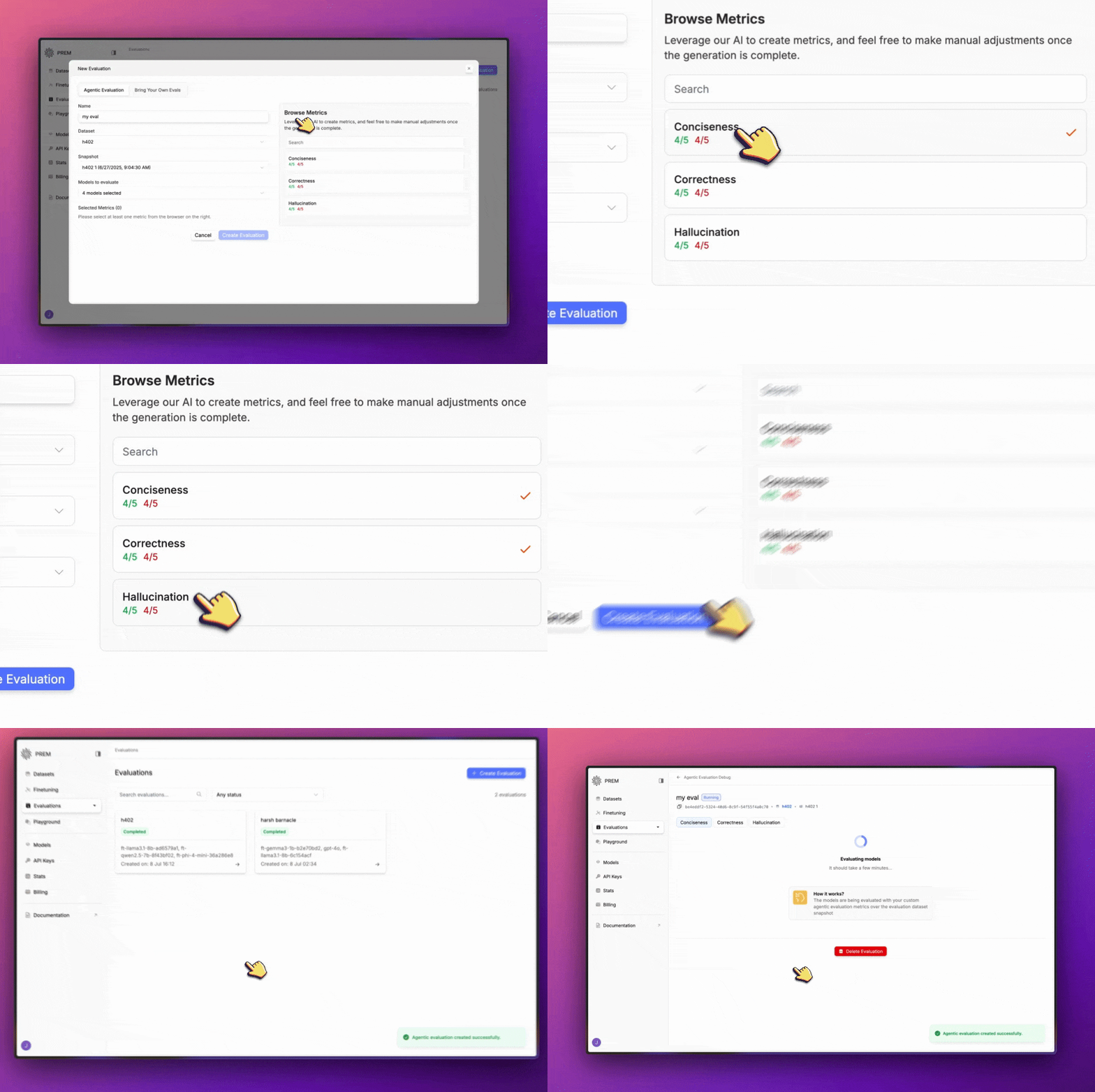 Once your evaluation is done you can check your results.
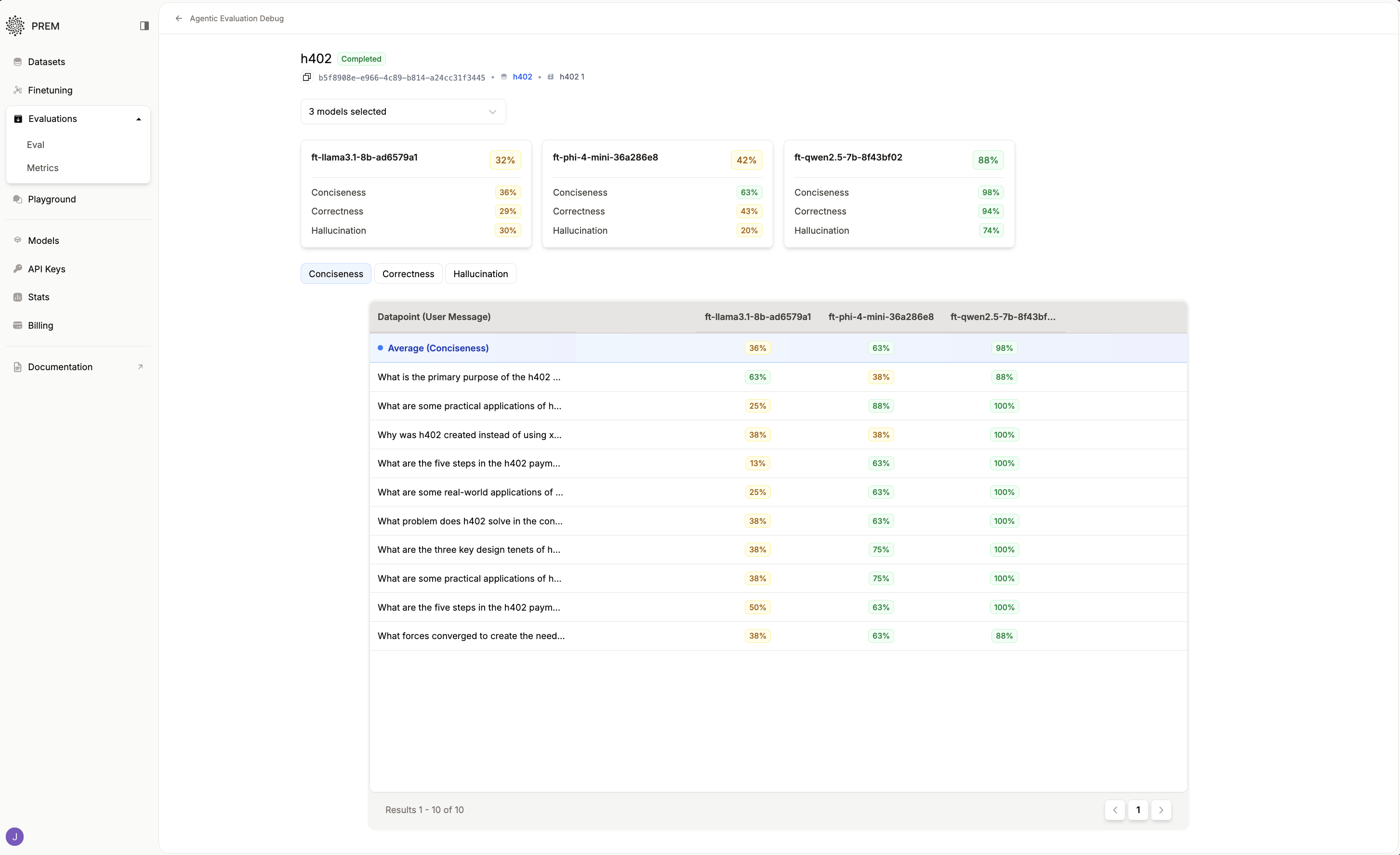 You can click on each metric to organize the results.
To get more details on each datapoint, click on the percentage under the model name.
You can click on each metric to organize the results.
To get more details on each datapoint, click on the percentage under the model name.
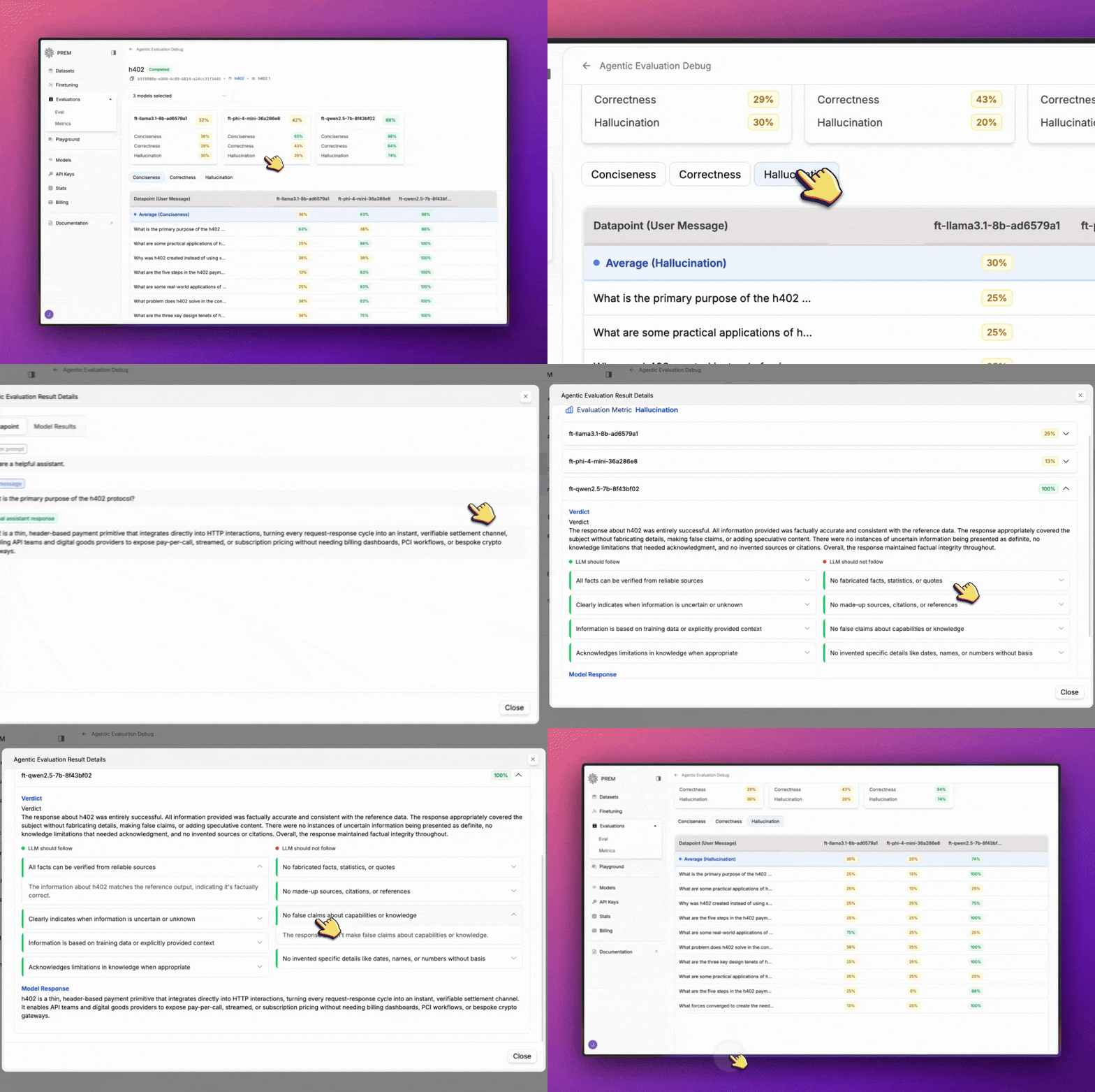 **The results will look something like this:**
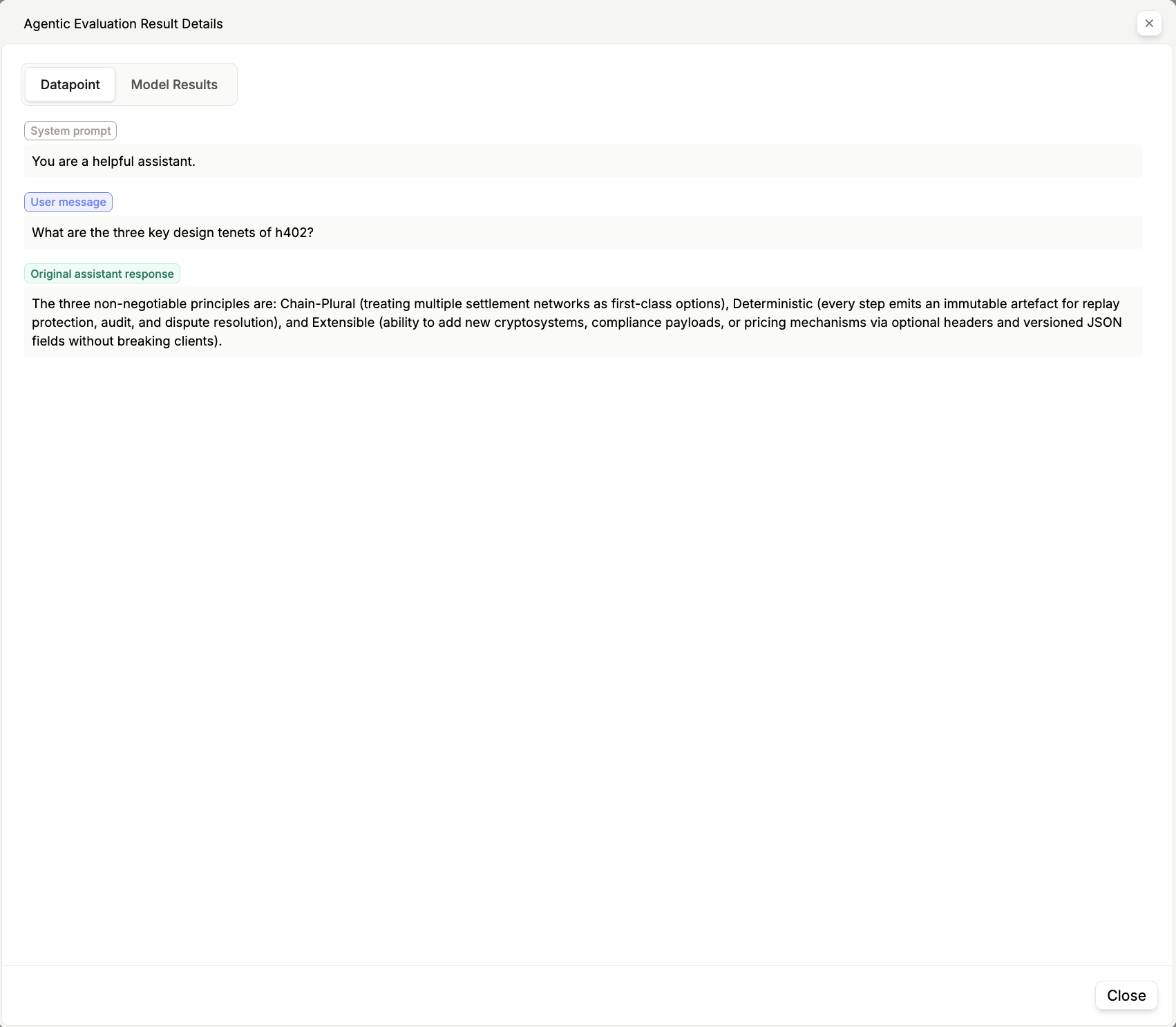 Click **Model Results Tab** to see additional details of the evaluation based on the model and metric.
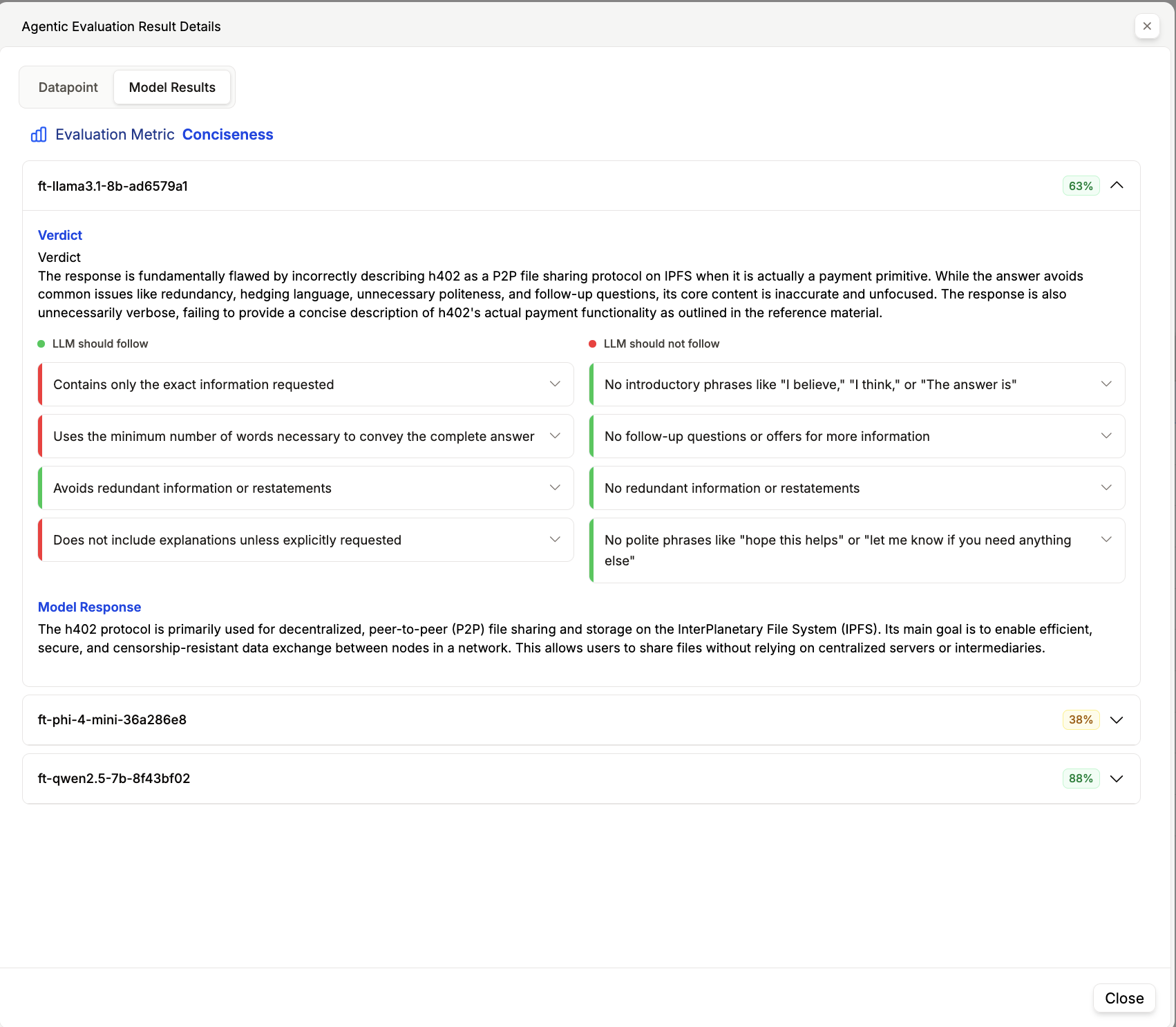 ### Here are Some Results to Keep in Mind:
* **Average Score**: The average score of the evaluation for the model.
* **Model Name**: The name of the model the evaluation was run on.
* **System Prompt**: The system prompt used for the evaluation.
* **User Message**: The user message from the dataset.
* **Original Assistant Message**: The original assistant message from the dataset.
* **Predicted Assistant Message**: The predicted assistant message from the model.
* **Model Score**: The score of the model chosen for the evaluation.
* **Score Reason**: The reasoning behind the score.
## Other Options
Click here to learn how to bring your own evaluation to Prem.
Create your own custom evaluation metrics and rules.
Click here to learn how to use your fine-tuned model in the playground.
### Here are Some Results to Keep in Mind:
* **Average Score**: The average score of the evaluation for the model.
* **Model Name**: The name of the model the evaluation was run on.
* **System Prompt**: The system prompt used for the evaluation.
* **User Message**: The user message from the dataset.
* **Original Assistant Message**: The original assistant message from the dataset.
* **Predicted Assistant Message**: The predicted assistant message from the model.
* **Model Score**: The score of the model chosen for the evaluation.
* **Score Reason**: The reasoning behind the score.
## Other Options
Click here to learn how to bring your own evaluation to Prem.
Create your own custom evaluation metrics and rules.
Click here to learn how to use your fine-tuned model in the playground.