> ## Documentation Index
> Fetch the complete documentation index at: https://studio-docs.prem.io/llms.txt
> Use this file to discover all available pages before exploring further.
# Get Started With Fine-Tuning
> Learn how to fine-tune a model with Prem.
# Start Here ↓
You can only fine-tune a model if you have a snapshot of your dataset.
Get started by clicking the "Create Finetuning Job" button on the top right of the screen.
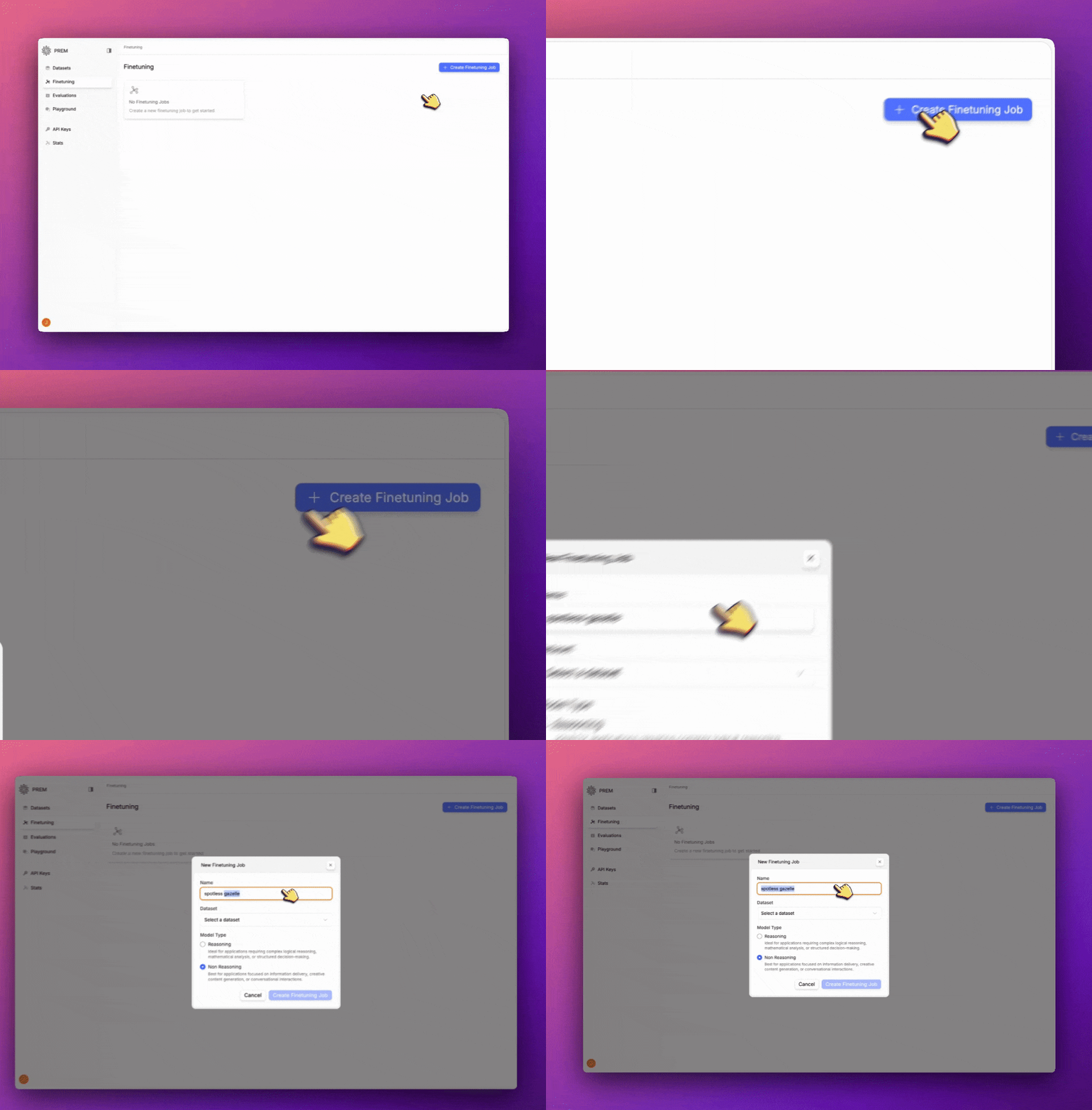
* Add a name for the fine-tuning job.
* Choose a dataset to fine-tune on.
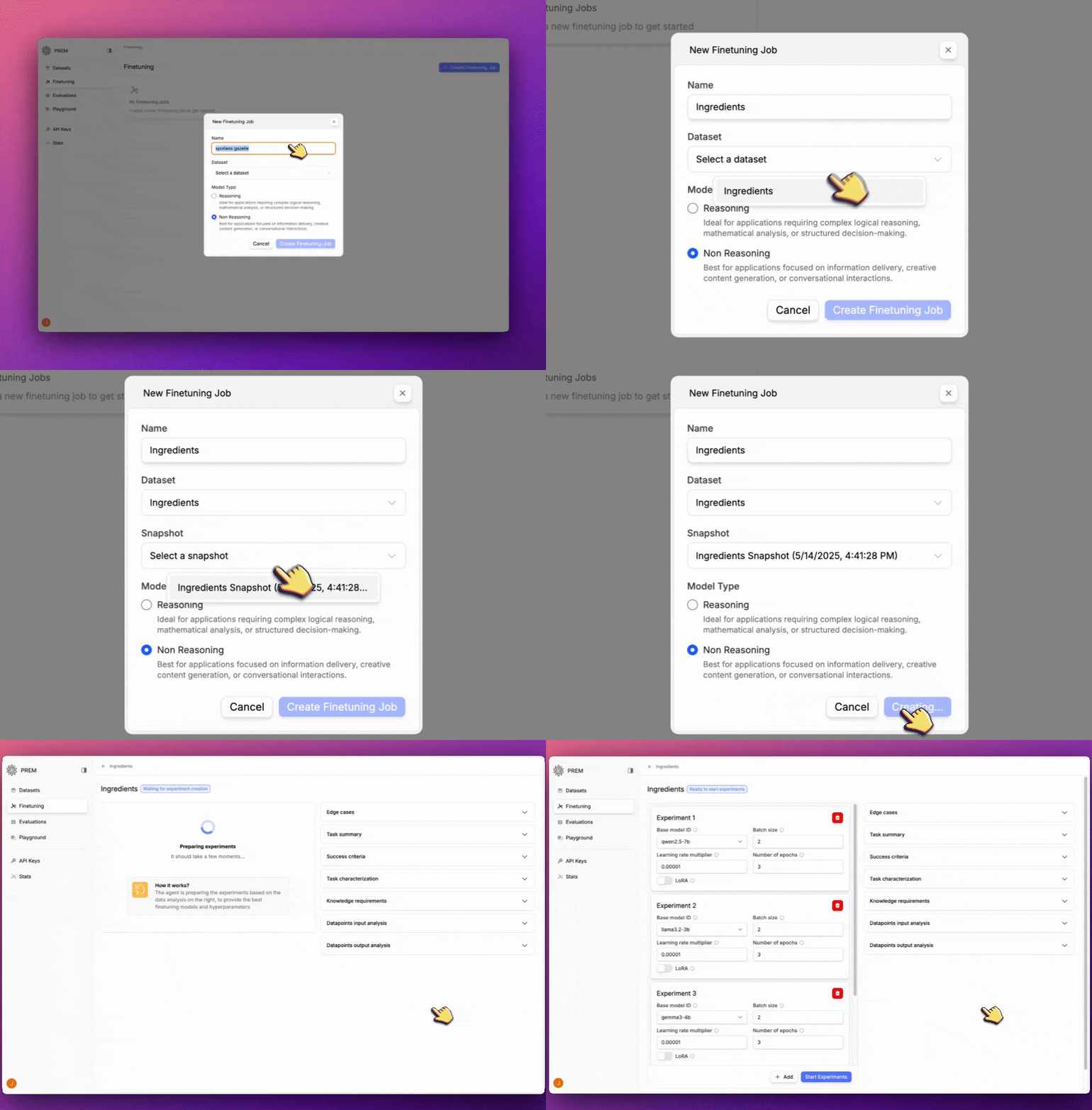
Once you create a fine-tuning job your model will be ready for experimentation. You can see the indicator on your fine-tuning job.
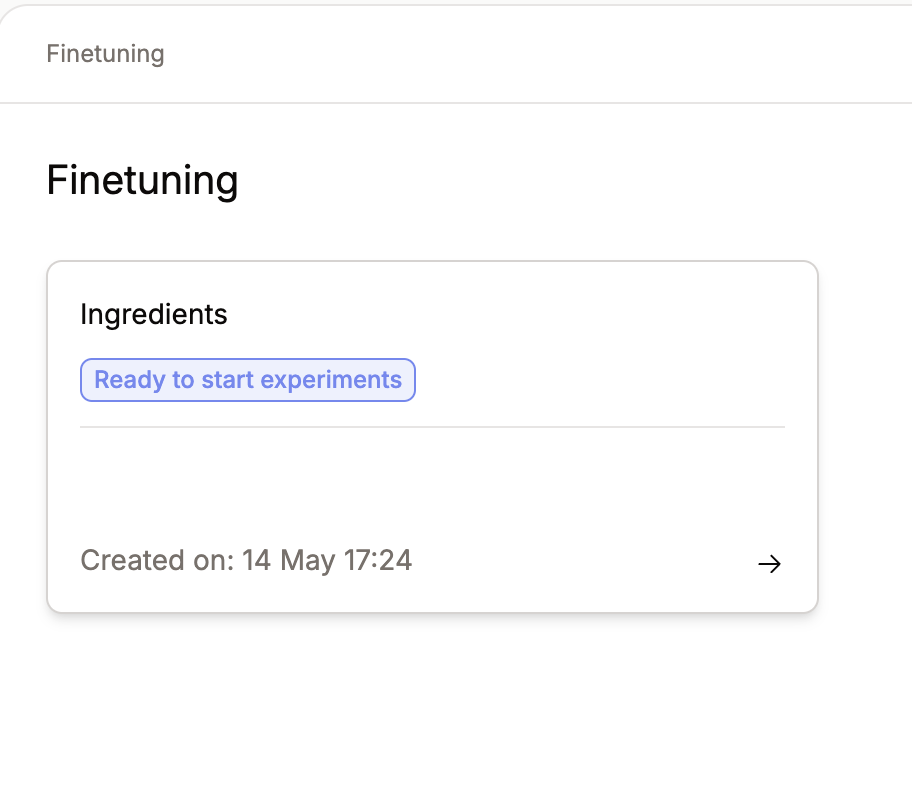
Experiments need their own guide so you can really get the most out of your fine-tuning job.
Click on this card to learn more about creating experiments with your fine-tuned model.