> ## Documentation Index
> Fetch the complete documentation index at: https://studio-docs.prem.io/llms.txt
> Use this file to discover all available pages before exploring further.
# Using The Playground
# What is the Playground?
The Playground is an interactive environment where you can test and chat with AI models in real time. It offers a simple yet powerful interface for exploring AI model capabilities through conversation.
## Getting Started ↓
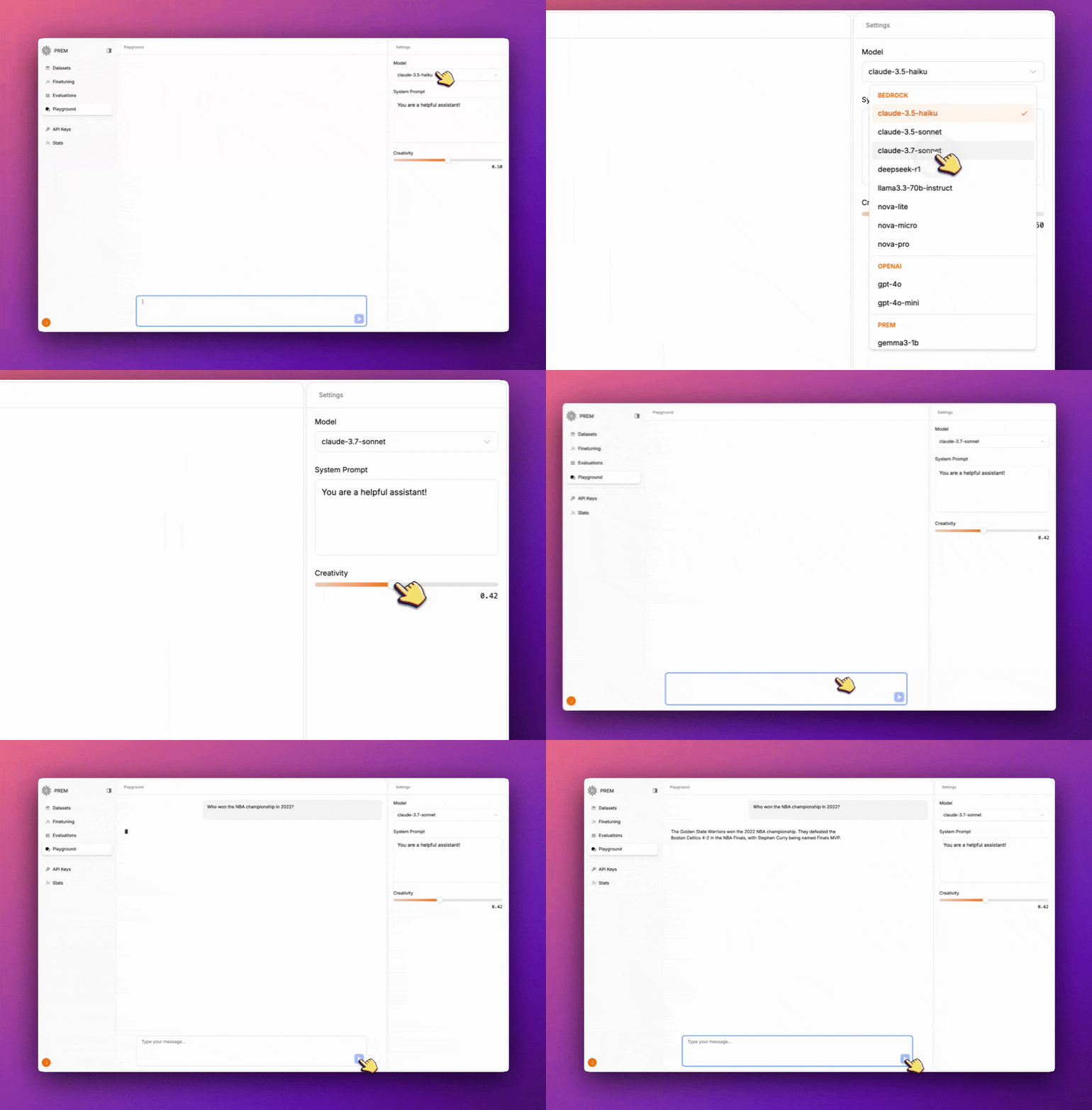
1. Select your desired AI model from the dropdown menu
2. Customize the system prompt based on your use case
3. Adjust the creativity level using the slider
4. Start chatting with the model to test its capabilities
The Playground provides an intuitive way to explore AI model performance and behavior before implementation in your projects.
 ***
## Features/Settings
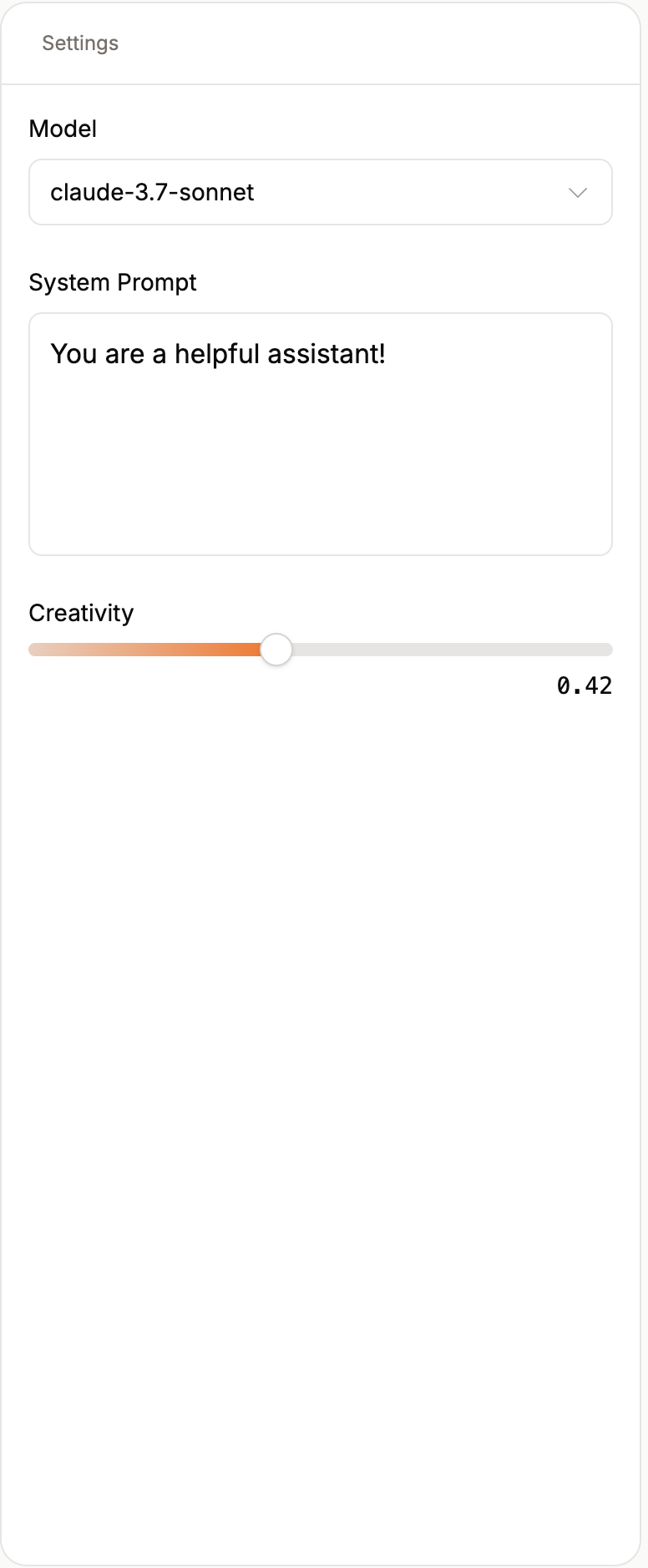
* **Test AI Models**: Experiment with various pretrained or fine-tuned AI models
* **Interactive Chat**: Engage in conversations with selected models
* **Model Selection**: Choose from different [available models](https://studio.premai.io/public/models) to test
* **System Prompt Customization**: Modify the system prompt to guide the model's behavior
* **Creativity Control**: Adjust the creativity level of responses using a simple slider
***
## Features/Settings
* **Test AI Models**: Experiment with various pretrained or fine-tuned AI models
* **Interactive Chat**: Engage in conversations with selected models
* **Model Selection**: Choose from different [available models](https://studio.premai.io/public/models) to test
* **System Prompt Customization**: Modify the system prompt to guide the model's behavior
* **Creativity Control**: Adjust the creativity level of responses using a simple slider
 # Learn More With Our Other Guides
Learn how to use the PremAI SDK and OpenAI SDK.
Learn how you can use Prem to autonomously fine-tune your models.
Learn how you can evaluate your models with our built-in metrics and tools.
Learn how you can monitor your models and their performance over time.
***
## Support
Find answers to frequently asked questions about Prem.
See the list of available models in Prem.
# Learn More With Our Other Guides
Learn how to use the PremAI SDK and OpenAI SDK.
Learn how you can use Prem to autonomously fine-tune your models.
Learn how you can evaluate your models with our built-in metrics and tools.
Learn how you can monitor your models and their performance over time.
***
## Support
Find answers to frequently asked questions about Prem.
See the list of available models in Prem.