

Creating Your First Project
Projects provide a guided, end-to-end workflow for AI model development. This guide walks you through creating a complete project from start to finish.Step 1: General Setup
1
Navigate to Projects
From the main dashboard, click Projects in the left sidebar, then click + Create Project.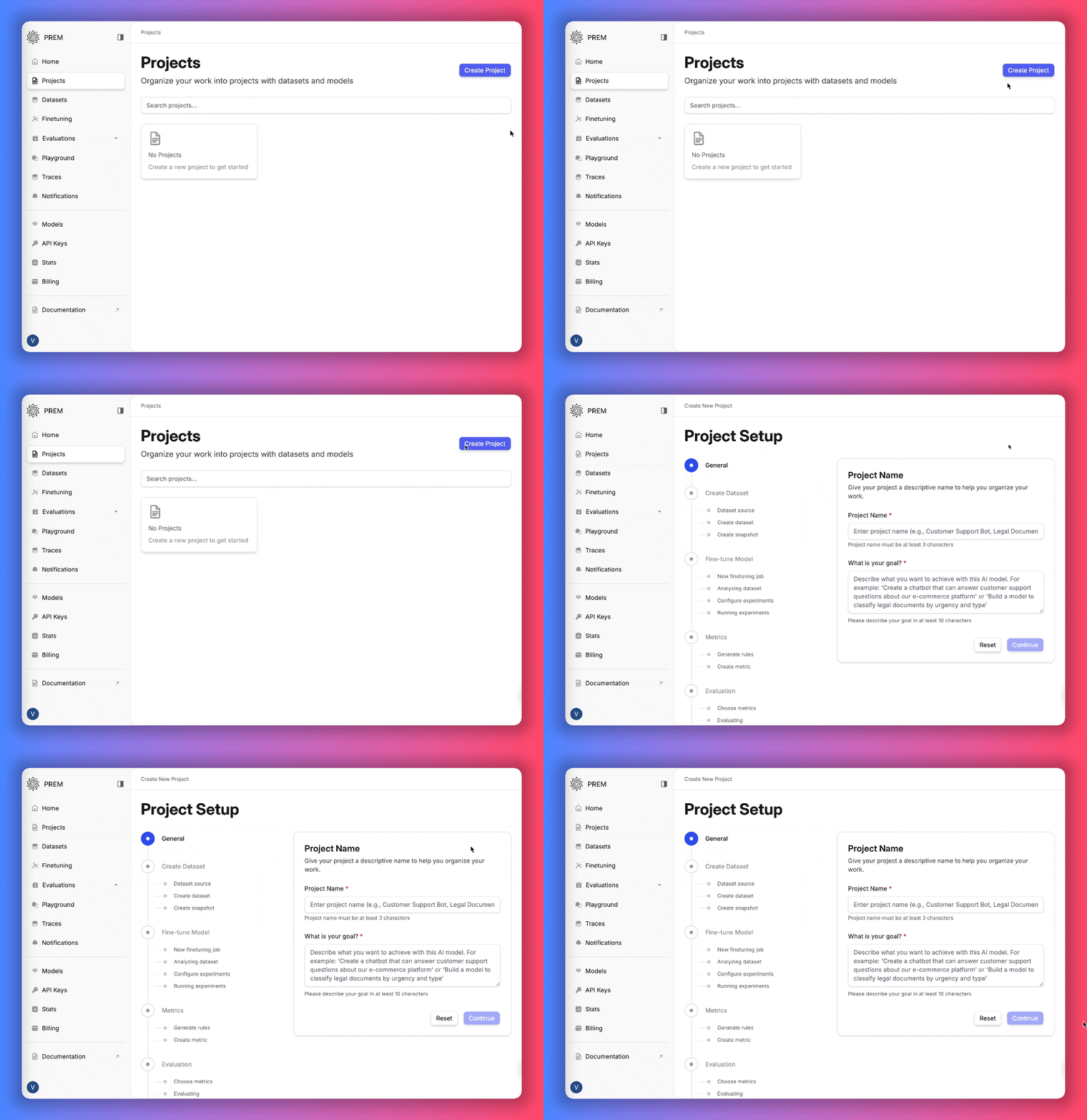
2
Configure Project Basics
Project Name: Choose a descriptive name that reflects your use caseProject Goals: Add context about your project goalsFollow-up Questions: Answer some questions about your project
Step 2: Create and Handle Dataset
You have two paths for dataset creation. Choose the one that fits your situation:Path A: Upload Existing JSONL Dataset
Upload your existing dataset in JSONL format.1
Upload Your JSONL File
- Dataset Name: Enter a descriptive name
- Upload File: Select your properly formatted JSONL file
- Validation: The system will automatically validate your dataset format
Need help with JSONL format? See our Datasets Overview for detailed formatting requirements.
Path B: Generate Synthetic Dataset
Generate synthetic dataset from your content (PDFs, web pages, youtube videos)1
Choose Data Sources
Select your input sources for synthetic dataset generation:
- Files: PDF, DOCX, TXT, HTML, PPTX
- YouTube Videos: Individual videos or playlists
- Web URLs: Website content extraction
- Mixed Sources: Combine multiple input types
2
Configure Advanced Settings (Optional)
Rules & Constraints: Define generation requirementsQuestion Format: Guide question structureAnswer Format: Define expected answer styleYou can also provide QA Examples to better steer the synthetic data generation.Creativity Level: Adjust generation diversity (0-100)
3
Review and Generate
Review your configuration summary: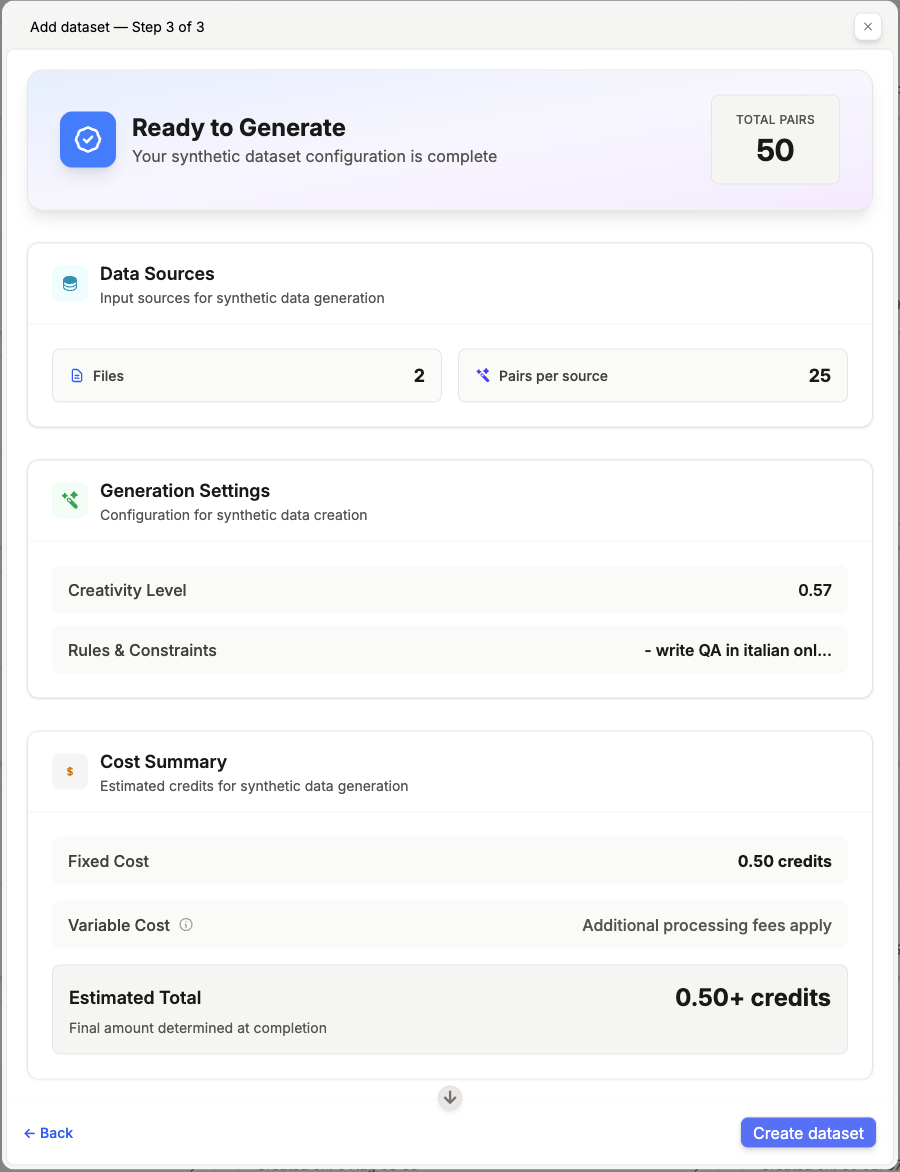
- Data sources and expected output count
- Generation settings and estimated cost Click Generate Dataset to start the process.
Snapshot Creation
Regardless of which path you chose (upload or synthetic generation), you need to create a snapshot:1
Overview Dataset
Browse through the QA pairs inside the dataset to ensure quality and relevance.
2
Autosplit the dataset into training and validation split. If you find challenging QA pairs that could be a good test case during evaluation, manually select them and place them in validation set.
3
Create Snapshot
Create a snapshot of your dataset for fine-tuning:
- Snapshot Name: Give it a descriptive name
- Click Create Snapshot to finalize
Step 3: Fine-tune Your Model
1
Create New Fine-tuning Job
Start by creating a fine-tuning job:
- Job Name: Give your fine-tuning job a descriptive name
2
Dataset Analysis
The system will analyze your dataset automatically:
- Data Quality Assessment: Checks for formatting and consistency
- Content Analysis: Analyzes patterns and complexity
- Recommendations: Suggests optimal training models and parameters
This analysis typically takes 2-5 minutes and helps optimize your training configuration.
3
Configure Experiments
Based on the analysis, the system returns a set of recommended experiments.
4
Run Experiments
Start the fine-tuning process:
- Experiment Selection: Choose which experiments to run
- Monitor Progress: Track training progress in real-time
- Compare Results: View performance across different configurations
Fine-tuning duration varies from 30 minutes to several hours depending on dataset size, model complexity, and chosen parameters.
Step 4: Define Metrics
Before evaluating your model, define the metrics that will measure success for your specific use case:1
Generate Rules
Describe your evaluation needs and let our AI generate the rules for you.
Provide:
- metric name
- metric description
2
Create Custom Metrics
Accept/Update/Delete the previously generated rules to actually create the metric.
Well-defined metrics are crucial for meaningful evaluation. Take time to think about what “success” looks like for your specific use case. Learn more in our Evaluation Metrics Guide.
Step 5: Evaluate Your Model
1
Choose Metrics
Select the metrics you want to use for evaluation:
- Your Custom Metrics: The metrics you defined in the previous step
- Available Metrics: Pre-built metrics from the Prem library
2
Start Evaluation
Begin the evaluation process on the validation split, by using the previously defined metrics.
3
Review Evaluation Results
Analyze the results to understand model performance:
- Metric Scores: See how each model performed on each metric
- Detailed Breakdowns: Examine individual response quality
- Identify Weaknesses: Find areas where models need improvement
Evaluation typically takes 5-15 minutes depending on test dataset size. Learn more about evaluation strategies in our Evaluations Guide.
Project Complete
Congratulations! Your project is now complete. You have:- ✅ Created or uploaded a quality dataset
- ✅ Successfully fine-tuned your model
- ✅ Defined custom metrics for your use case
- ✅ Validated performance through evaluation
- ✅ Generated a production-ready AI model
Next Steps
Deploy Your Model
Learn how to deploy your fine-tuned model for production use.
API Integration
Integrate your model into applications using our API.
Model Experiments
Run experiments to further optimize your model.